Telegram has become more popular in the past few years due to its security and simplicity. It supports all the major operating systems and it’s very easy to use as a mobile app. Telegram apps can be used simultaneously on various devices. Unlike other messaging platforms, it has no major limitation in using it as your marketing tool.
In the telegram, we can create groups and channels to interact with customers but the most important thing we need for marketing is a telegram bot. You can call this bot a business account on telegram. The telegram bot account can automatically reply to the users depending on the keywords they use in their messages. We just need to create keyword-based bot replies. Not only helping with their queries but a bot can automatically sell your products to your customers by using the eCommerce bot.
Though users of telegram create their account with a phone number, we can’t just import contacts to broadcast a message to the users. This is the only limitation we have for a Telegram business or a bot account. Users need to send a message first, then they will become subscribers.
To get subscribers for the Telegram channel we can create chatbox widget and short link on WTBotbuilder, and share the chatbox widget (JavaScript embed code) on websites to grow our subscribers’ list. Let’s see how to do that on WTBotbuilder.
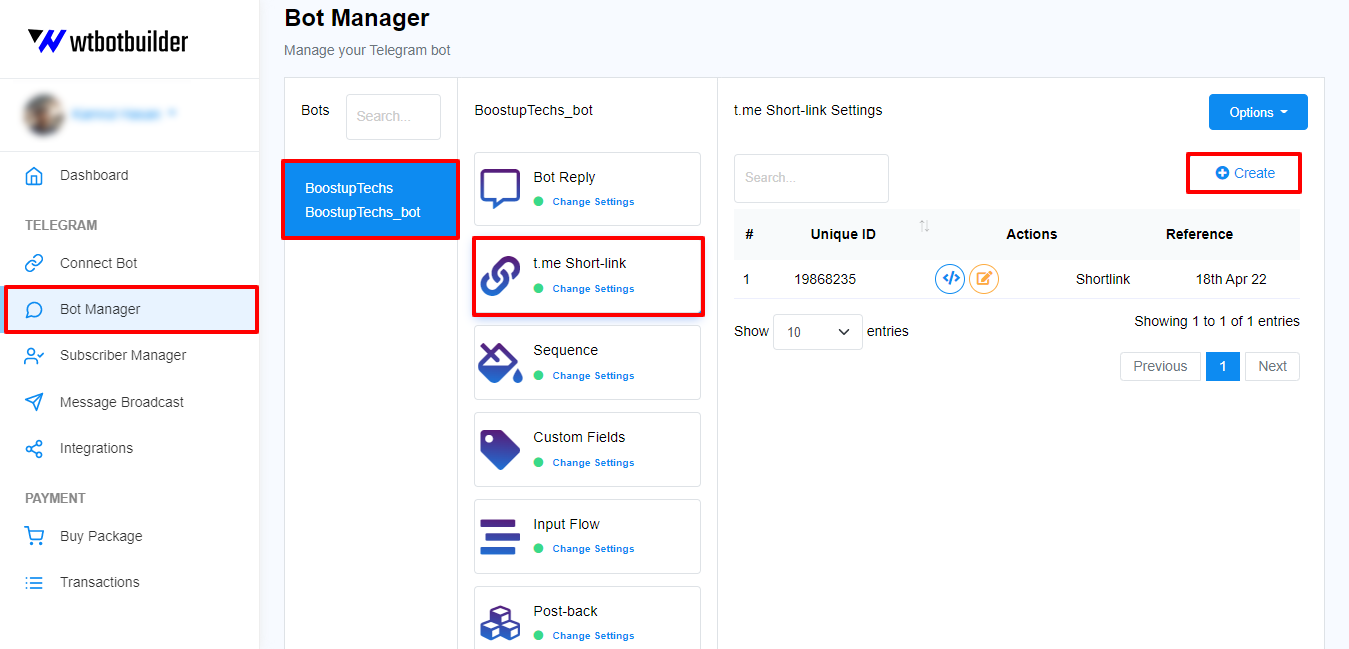
From the left navigation menu of WTBotbuilder’s dashboard go to Bot Manager, select the bot account for which you want to create the short link. Then select the t.me Short-link and then click on the Create button.
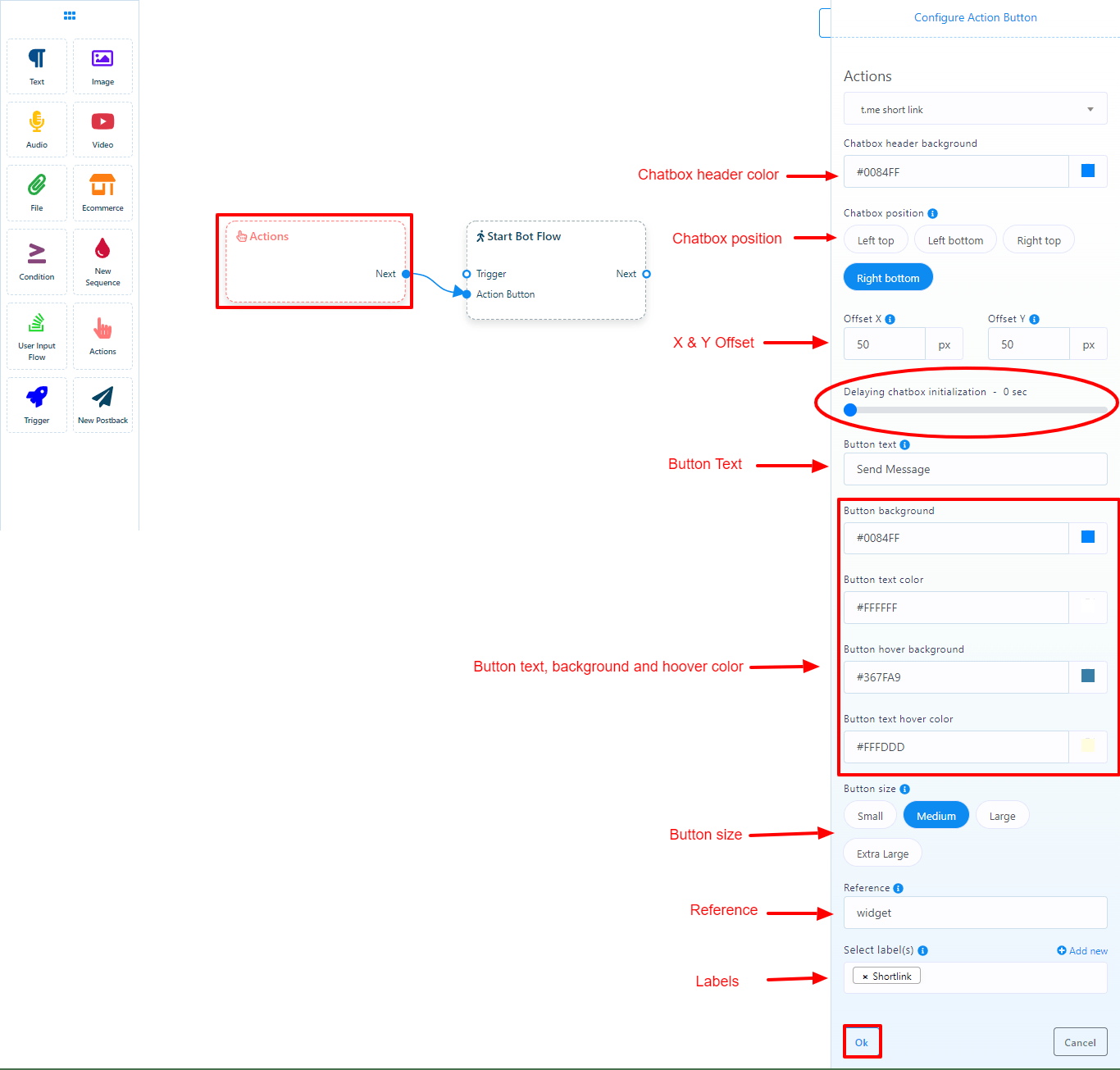
You’ll be sent to the visual flow builder as soon as you click the Create button. We’ll start with the choices for configuring the Actions button (Widget and shortlink). By default, the action button type is set to short link. We may modify the color of the chatbox header, the chatbox’s location, and the X and Y axis Offset values. Then there’s the wait for the chatbox to appear once the site pages have loaded. Then there’s the button text (by default, it’s Send Message), which we can edit to anything we want. We may also modify the colors of a button’s background, text, button hoover background, and text hoover color. We can select any button size from 4 types of buttons. Then we need to give a reference for this short-link, and it’s mandatory. We can also select labels for this short-link so that we can separate the subscribers that we gain from this short-link. Finally, click on the Ok button to save the configuration.
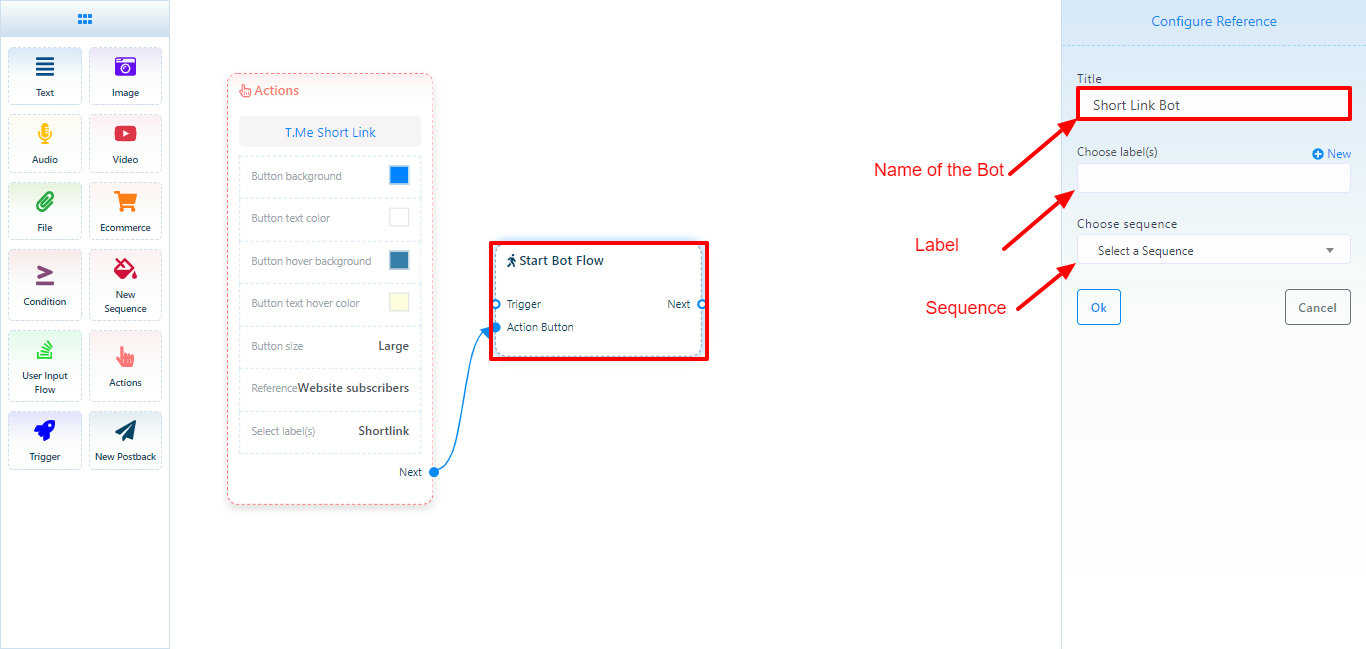
Then we need to give a name for this short-link bot. Double click on the “Start Bot Flow” element to give a name for the short-link bot. We can also choose a label and set sequence message here on the “Start Bot Flow”.
Now, let’s add a reply to this short-link bot. We can add text, image, audio, video, file, and eCommerce reply. For instance, let’s add a text reply. We can also add buttons with the text reply. To add buttons with the text element just drag a connector from the socket and leave the cursor. We can keep this as a simple bot or we can create a full bot as big as we want.
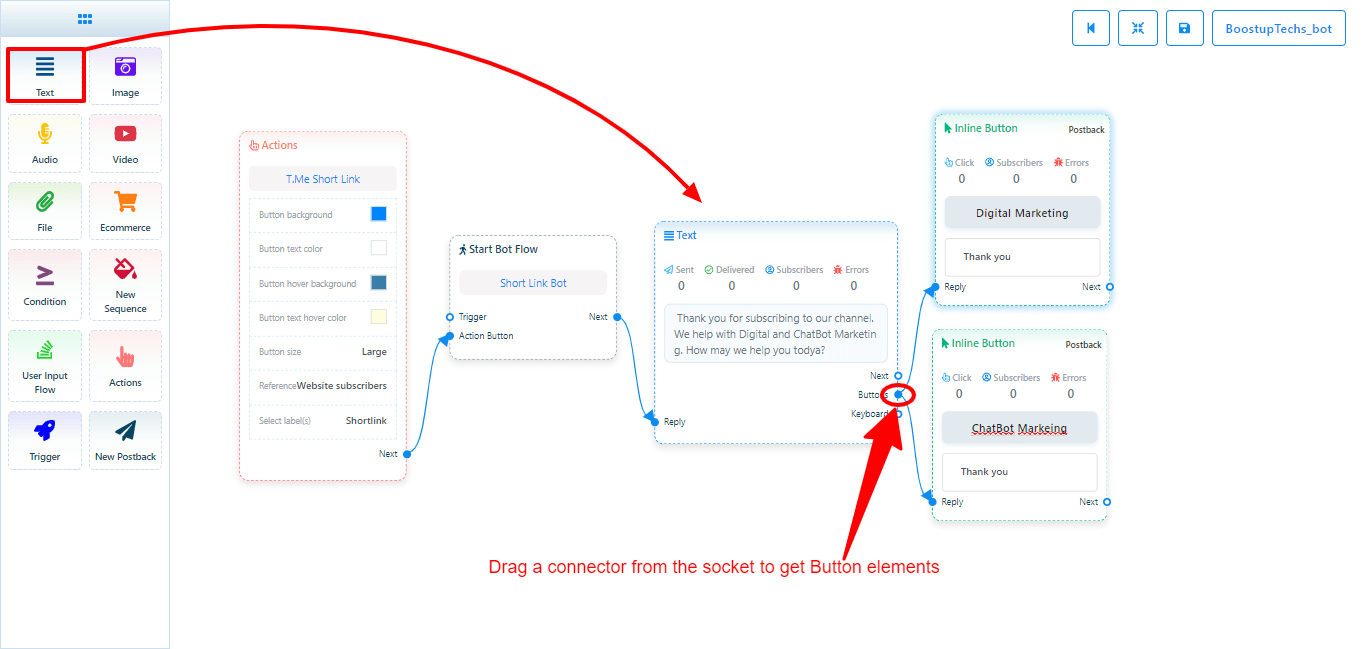
To configure the buttons double click on the buttons, here I am keeping the button type as postback and selecting the post backs from the list (Previously created postbacks).

Finally, save the bot, and let’s get back to the dashboard. We will find the short-link and the JavaScript embed code there.

Here we can see the short-link we have just created. Click on the “Get Embed Code” Button under the Actions menu to get the t.me link, javascript embed code, and a QR code to share on websites, emails, and social media.

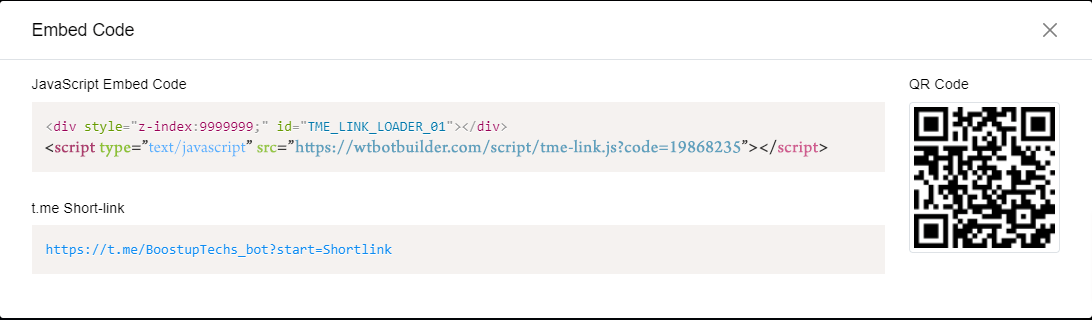
Now, if we add this code to our site we will see a chatbox widget like this one.

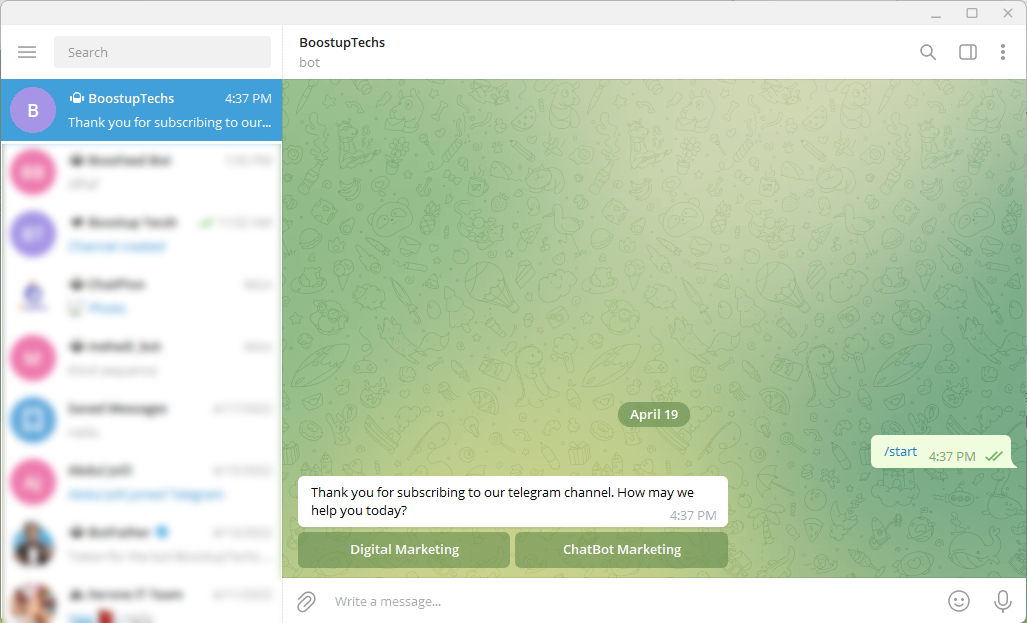
When the users click on the widget they will be redirected to the telegram channel. And when the user clicks on the Start button they will become subscribers to your Telegram Channel
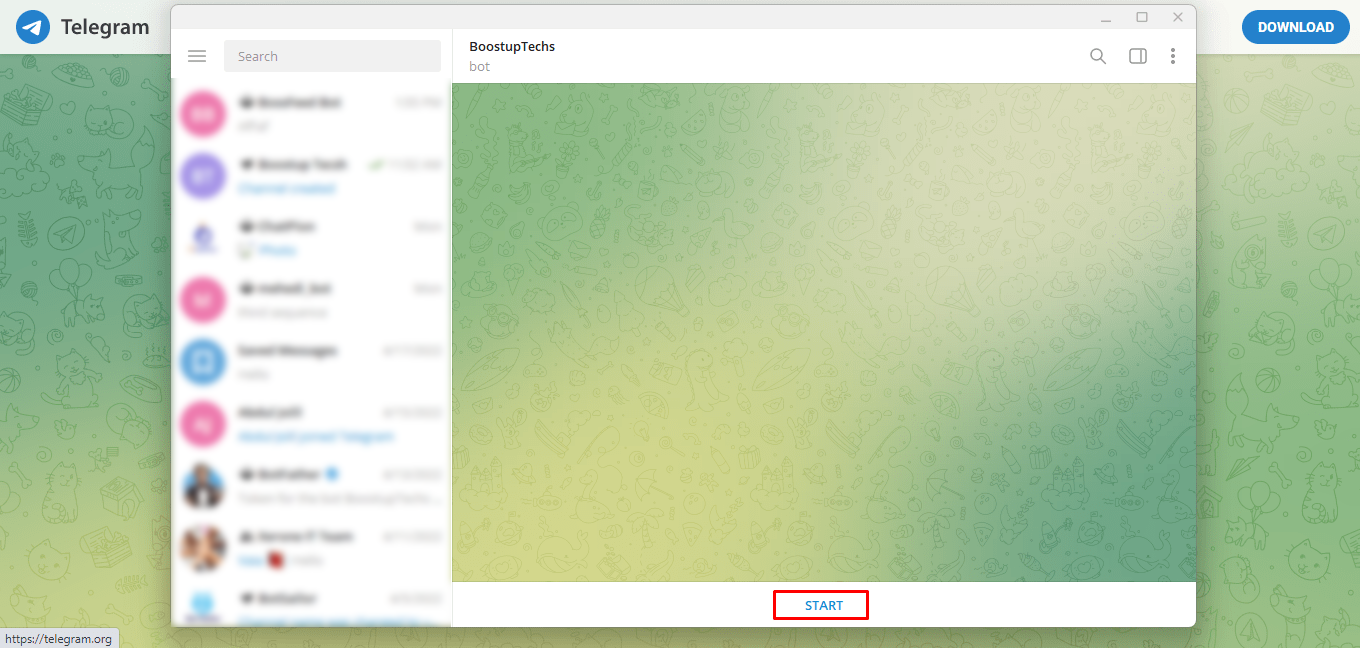
Also, they will receive the bot reply that we set up while creating the short-link bot.
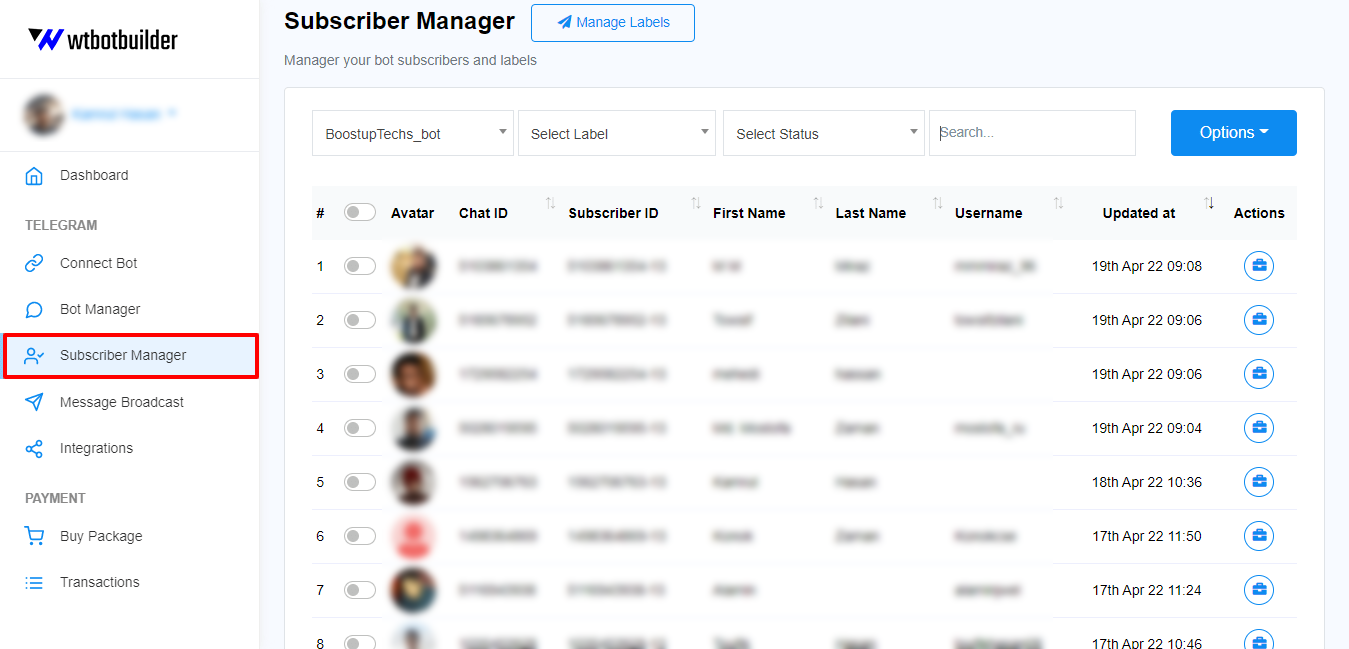
The subscriber will be added to the subscribers’ list. To see the subscribers list just go to the Subscriber manager from the left navigation menu of WTBotbuilder dashboard.